
Account Security
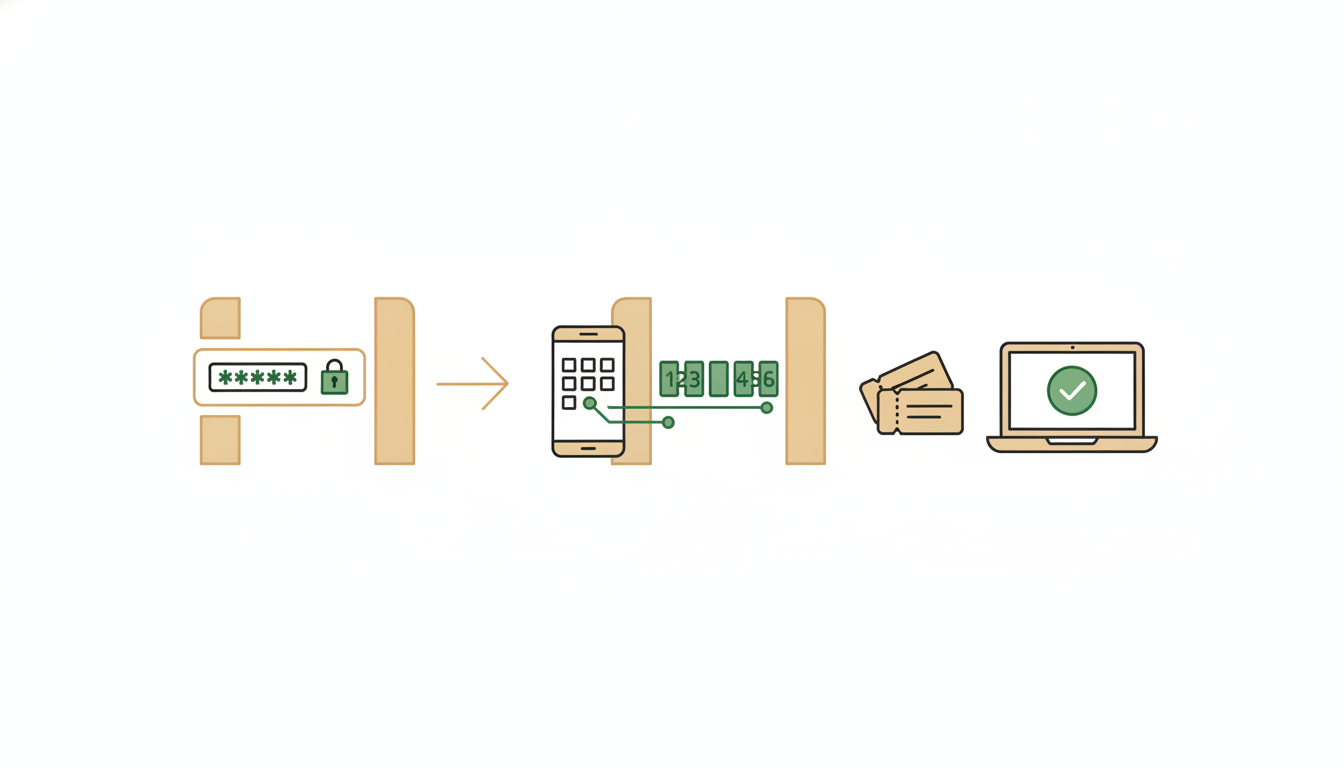
Your Alfrada OS account is the key to everything you've built here: your conversations, files, memories, connected email and calendar accounts — and, if you run Argus on WhatsApp, an agent that acts with your account's full authority. Two-factor authentication (2FA) protects all of it: even if someone steals your password, they can't sign in without the 6-digit code from an authenticator app on your phone.
Everything on this page lives in one place: Settings → Account → Security. A pill at the top of the tab shows your current state — Enabled or Off.
Walk me through enabling two-factor authentication on my account.I lost my phone — how do I sign in to Alfrada OS with a backup code?Turn On 2FA
You'll need an authenticator app — Google Authenticator, 1Password, and Authy all work, as does any app that generates standard 6-digit codes.
- Open Settings → Account → Security and click Enable 2FA.
- Scan the QR code with your authenticator app — or, if you can't scan, copy the Manual key shown beside it and add it to the app by hand.
- Type the 6-digit code your app now shows and press Verify & enable.
That's it. From now on, every new sign-in asks for your password and a current code.
Codes rotate every 30 seconds, and each one works exactly once. If you enter a code that was just used — say, two of your own devices sign in within the same half-minute — Alfrada OS says so plainly: "You've already used that code. Wait for your authenticator to show the next one." That isn't an error. Just wait for the next code.
Save Your Backup Codes
The moment 2FA switches on, you're shown 10 backup codes — and this is the only time you will ever see them. They're the answer to "what if I lose my phone?", so treat them like cash:
- Each code works once, in place of an authenticator code — to sign in, or to turn 2FA off.
- Use Copy all or Download (saves a file named
alfrada-backup-codes.txt), and store them somewhere that isn't the phone running your authenticator — a password manager or a printed page both work well. Click I've saved them when you're done. - The Security tab always shows how many unused codes you have left.
Running low? Turn 2FA off and on again — every fresh setup issues a new set of ten (and invalidates whatever was left of the old set).
Trusted Devices
Typing a code on every sign-in from your own laptop would get old fast, so Alfrada OS lets you mark devices you trust:
- The device you finish setup on is trusted automatically.
- On any other machine, tick Don't ask again on this device for 30 days when the sign-in screen asks for your code.
- A trusted device skips the code entirely for 30 days, then gets asked again.
The Security tab lists every trusted device with the date its trust runs out. Click the small X beside a device to forget just that one, or Forget all to revoke every device at once — the right move when a laptop is lost, sold, or shared. A forgotten device isn't locked out; it's simply asked for a code the next time it signs in.
Signing In With 2FA On
Sign-in gains one extra step: after your correct password, a screen asks for the 6-digit code from your authenticator app — or one of your backup codes. Two limits are worth knowing:
- The code screen times out after 5 minutes — take longer and you start over from the password step.
- Five wrong codes also send you back to the password step.
Both limits exist so nobody can sit on that screen guessing. For you, they just mean: have your phone handy when you sign in.
The Setup Reminder
If 2FA is off, Alfrada OS shows a "Protect your account" prompt after you sign in. It's Alfrada's own prompt and safe to accept — setup takes about a minute. Set up now takes you straight to the Security tab; Remind me in 30 days snoozes the prompt for a month. Closing it without choosing only hides it for the current session — it returns at your next sign-in until you either enable 2FA or snooze it.
Turning 2FA Off
In the Security tab, find the Disable two-factor authentication section, enter a current authenticator code or one of your backup codes, and click Disable 2FA.
Turning it off is a full reset: the secret your authenticator app holds, all remaining backup codes, and all trusted devices are wiped together. If you re-enable later, you'll scan a fresh QR code and receive a fresh set of backup codes — the old ones are gone for good.
Changing Your Password
Password changes are confirmed by email, so a stolen session can't quietly change your password. In the Security tab, click Email me a password change link. A link arrives at your account email address; open it to set the new password. The link expires after 1 hour — if it lapses, just request another.
Your Login vs. The Vault
This page is about the credentials that protect your way into Alfrada OS. The Vault is the other half of the story: credentials the agent uses on your behalf — website logins, API keys, server access — stored under Settings → Account → Vault and released to tools only for approved work. Strong 2FA on your login protects the Vault too, because whoever holds your account holds everything the agent can reach.
For the full launch details, see the two-factor authentication release note.
Appendix: identifiers and mechanics
- Codes are standard TOTP (the same scheme every authenticator app speaks): issuer
Alfrada OS, 6 digits, 30-second interval, one step of clock drift tolerated. A matched time step is marked as spent when used — that's what rejects a reused code. - Backup codes: 10 issued per enrollment, single-use, stored only as hashes.
- Trusted devices: each trusted browser holds a random token; the server stores only the token's hash, with a 30-day expiry from the moment of trust. Downloaded backup-code file:
alfrada-backup-codes.txt. - Sign-in challenge: 5-minute lifetime, 5 attempts, then the challenge is destroyed.
- Setup-reminder snooze: 30 days. Password change links: 1-hour expiry.