
Chat And Sessions
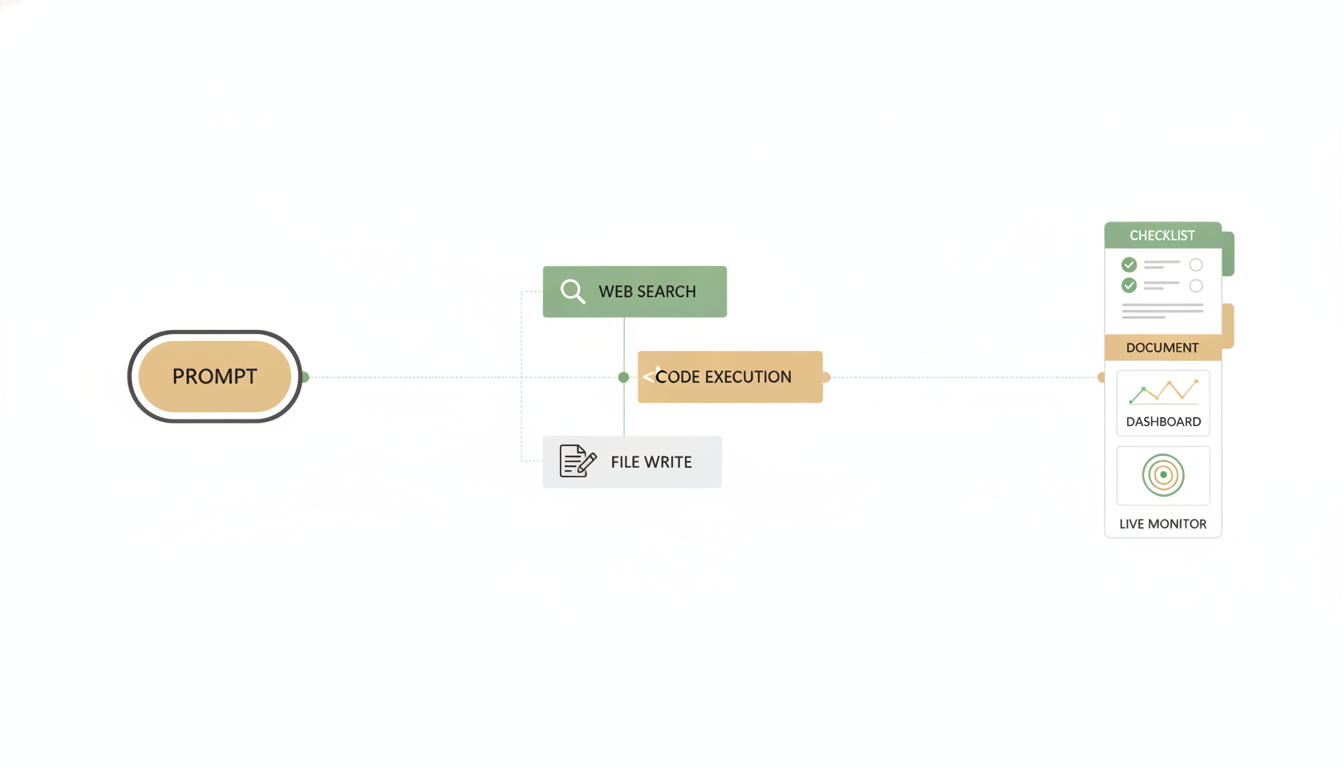
Sessions are the backbone of Alfrada OS. A session keeps one piece of work together end to end — the conversation, your files, the outputs, the model you picked, your Effort setting, pending wake-ups, and the Swarm plan — so you can close the laptop tonight and pick up exactly where you left off tomorrow.
What A Session Remembers
Reopen any session — an hour later or a month later — and all of this is still in place:
- The conversation itself — every message, including every branch you have explored.
- Your uploaded files — everything you added stays available to you and to Alfrada OS.
- Everything Alfrada OS produced — documents, decks, dashboards, and media stay attached in the Work Panel.
- The model and the mode — your pinned model comes back, and the session remembers whether it runs as a single agent or a Swarm.
- Your Effort setting — a Fast, Medium, or Beast pin is stored on the session and restored on reload, so a deliverable you flagged for deep double-checking stays flagged.
- The approved Swarm plan — reopen a Swarm session and the saved plan is right there to review or resume.
- Pending wake-ups — if Alfrada OS scheduled its own follow-through ("wake me in 20 minutes to check on the render"), the session shows the live countdown and the follow-up runs even if you are away. See Wake Me.
- Its toolset — the tools a conversation works with are fixed when it starts. New tools can still join mid-conversation, but only through an explicit activation step you will see happen.
- The Space it belongs to — every chat is grouped into a themed workspace (or waits in Unsorted until one claims it). More on Spaces below.
Why it matters: you never have to re-upload, re-explain, or re-configure. The session is the project file.
Branching — Try A Different Direction Without Losing This One
Hover over any message you sent and click the pencil (Edit & regenerate). Your edit does not overwrite anything — the conversation branches: the original version keeps existing, and a small counter with arrows (for example 1/2) appears beside your message so you can flip between versions at any time.
A copy-paste way to try it: go back to the message where you gave Alfrada OS the brief, edit one thing — say, change "write it for investors" to "write it for customers" — and resend. Now flip between the two branches and keep whichever version lands better. Nothing is lost either way.
Spaces — Your Chats, Grouped By Theme
Alfrada OS automatically groups related chats into Spaces — themed workspaces, each with a name and an icon. You do not have to file anything: once you have a handful of named chats, Alfrada OS clusters them by topic on its own, quietly, when you open the app, and keeps sorting new chats as they accumulate. (In the app itself the buttons say workspace — same thing.)
Where you'll see them:
- The chat history panel — click the History button at the top of the app. A workspace switcher sits at the top of the panel: pick All chats or a single workspace to filter the list. The switcher's menu is also where you create a workspace (New workspace), rename one, or hit Recluster workspaces to let Alfrada OS regroup everything from scratch.
- New chats join the active workspace — start a chat while a workspace is selected and it becomes part of that workspace automatically.
- The chat title menu — click a conversation's title at the top of the chat and use Move to workspace to re-file it by hand.
Why bother? Each Space keeps a rolling summary of the work inside it, updated as you go. Start a new chat inside a Space and Alfrada OS walks in already briefed — it knows what you decided last week without you pasting anything. That is the payoff: themed work compounds instead of resetting with every new chat.
The boundary: a chat is only pre-briefed on its own Space. Your "Marketing" chats do not leak into your "Personal finance" chats.
The escape hatch: when you do want something from another Space, just name it — Alfrada OS will look it up across the boundary with its Other Workspaces tool.
In my [Learning AI] workspace I worked out [an evaluation checklist]. Bring the key decisions over from that workspace and apply them to [this project].A chat is only pre-briefed on its own workspace. Naming the other workspace tells Alfrada OS to go fetch a focused summary from it.
Under the hood — how Spaces work
Grouping is automatic topic clustering: it first runs once you have about six named chats, and re-runs when roughly ten new unfiled chats pile up (you can force it anytime with Recluster workspaces). Each Space's rolling summary is capped at about 6,000 characters and is folded forward after each completed turn; it is what gets pre-loaded into a new chat in that Space. A chat can belong to more than one workspace. The cross-workspace lookup is the search_other_spaces tool, shown as Other Workspaces in the tool list — it deliberately excludes the workspaces the current chat already belongs to.
How Full Is This Conversation?
When you have picked a specific model (anything other than Auto), a small ring appears at the top-right of the message box. It fills as the conversation grows, showing how much of that model's context window — its working memory for this conversation — is in use. The ring turns amber past halfway and red past 80%.
Hover over it for the exact numbers: total used out of available (for example "412K/1.0M (41%)"), followed by a colour-coded breakdown of what is taking up the room — the system prompt, tool definitions, playbooks, memories, older conversation that has been summarized, and the work currently being done — plus how much free space is left. The same popup shows how many tools are active in this conversation.
Two things worth knowing:
- On Auto you won't see a fill level — the popup simply says "Auto mode manages context dynamically." Auto watches context for you and picks models accordingly, so there is nothing for you to manage. (The ring also does not apply in Swarm mode, where each worker manages its own context.)
- A red ring is your cue. Alfrada OS quietly summarizes older turns to keep a long conversation going, but a fresh session reasons more cleanly than a packed one. If the ring is deep into red and you are starting a new line of work, that is the moment to start a new session.
When To Start A New Session
Start a new session when:
- the task changes substantially
- the audience changes
- you need a different tool mix
- you want cleaner context for a fresh line of reasoning
- the context ring is deep into red and the current deliverable is done
When To Stay In The Same Session
Stay in the same session when:
- you are iterating on the same deliverable
- the uploaded files are still relevant
- you want outputs and revisions to stay connected
Sharing A Conversation
Click the conversation's title at the top of the chat and choose Share to hand a teammate the whole working session — conversation, files, and outputs — rather than a screenshot. A signed-in recipient gets their own private copy to continue from. The full walkthrough — private invites vs public links, what gets stripped before anyone sees it, and managing past shares — lives on the Sharing page; the feature debuted in Share Any Conversation.
Long Runs Survive Disconnects
If you close the tab, switch apps on your phone, or lose network while Alfrada OS is mid-job, nothing is lost: reopen the chat and it reattaches to the still-running turn instead of starting over. There is no recovery step to learn — just go back to the conversation. Details in Don't Lose Long Runs.
Talk Instead Of Type
When the message box is empty, a microphone button appears (in browsers that support speech recognition). Tap it and your words stream into the input live as you speak — you can watch the text appear, tap the button again to stop, or hit send mid-sentence to fire the message off. See Transcription That Streams.
Everyday Moves
- rename a session when the task becomes clearer (click the title, then the pencil)
- search recent sessions from the History panel and reopen any of them
- stop a generation if the response is heading the wrong way
- switch models mid-session without losing anything
We are starting a fresh session for [objective]. Use [key inputs]. The audience is [audience]. I want the final deliverables to be [deliverables]. Keep a clear plan and surface outputs in the work panel as they are created.A strong opener helps Alfrada OS organize the session correctly from the start.
Under the hood — where session state lives
The Effort pin is stored as performance_mode on the session and re-applied on reload; the frozen toolset is the session's bound_tools list (new tools enter via an explicit activation step); pending wake-ups hydrate from the session's pending_wake state; and reconnecting to a running turn is the streaming layer's resume path — the browser reattaches to the same in-flight stream.