
Sharing Conversations
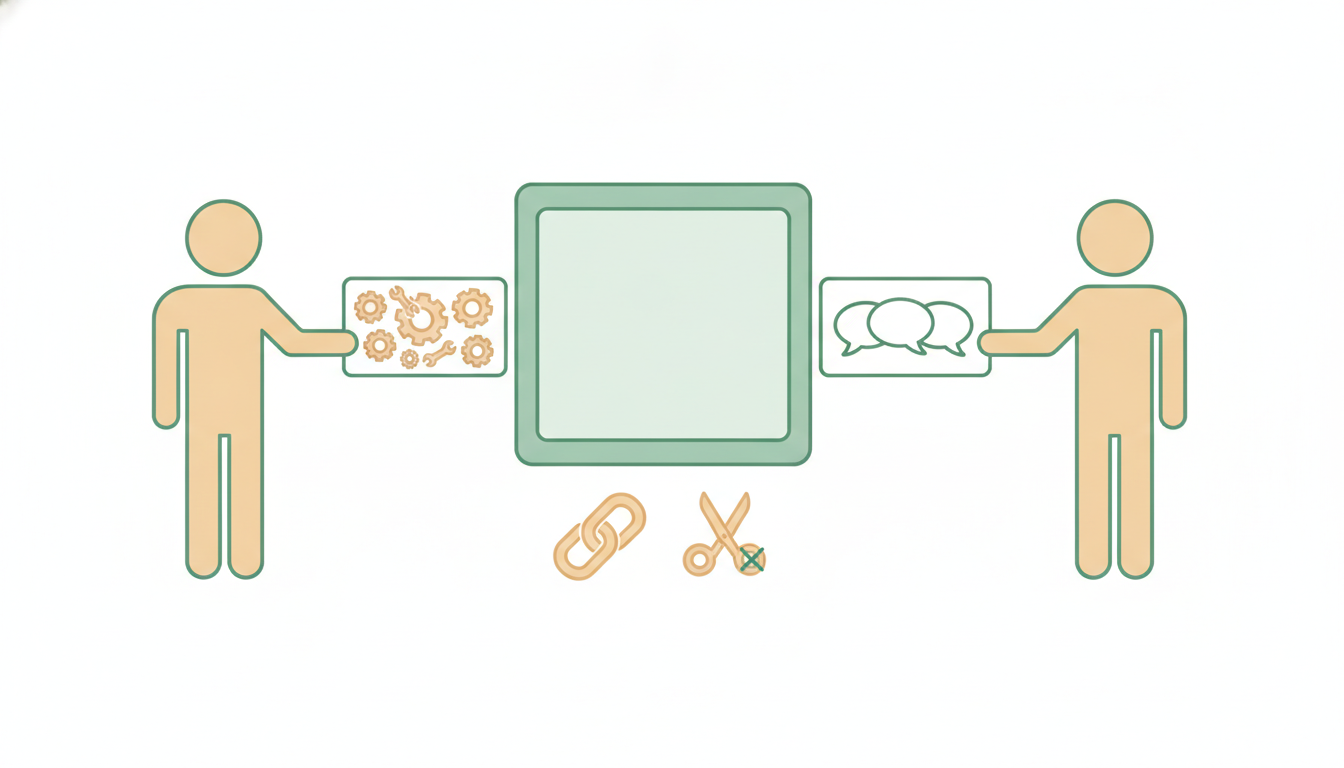
Some work is easier to show than to describe. Sharing turns a finished conversation into a clean, read-only web page — the discussion, the decisions, and every file it produced — so a teammate, client, or friend can read the whole thing exactly as it happened, and even pick it up in their own account. No screenshots, no copy-pasting, no narrating a session over a call.
The fastest path:
- Click the conversation's title at the top of the chat and choose Share — or click the small share icon in the row of actions under any Alfrada OS reply.
- The Share Conversation window opens with three tabs: Private, Public Link, and History.
- Pick Private to invite one person by email, or Public Link to get a link anyone can open.
Before anyone sees anything, Alfrada OS strips the machinery out: tool runs and their outputs, system prompts, and the memories it brought into the conversation are all removed. What's left is the clean narrative — your messages, Alfrada's replies, and the deliverables. More on this below.
Two Ways To Share
Public link — anyone with the link can view
On the Public Link tab, click Generate Link. You get a tidy URL (it looks like …/s/a-readable-name based on the conversation title) to paste anywhere — email, Slack, a group chat.
Two things worth knowing:
- One link per conversation. Each conversation has exactly one live public link. Open the modal again or hit Generate twice and you get the same URL back — the modal even tells you: "Reusing the public link you already generated for this conversation." Bookmarks never break, and re-copying a link never burns anything.
- Public links do not expire. They stay live until you revoke them.
Private invite — one person, verified by email
On the Private tab, enter a recipient email and click Send Invite. They receive an email with a preview of the conversation and a link. To read the full conversation, they must sign in with that exact email address — if someone else gets hold of the link, it shows them a sign-in gate, not your conversation.
Private links expire automatically after 30 days.
One limit applies across both kinds: you can create up to 20 new shares per day. (Re-copying an existing public link doesn't count against it.)
What The Person You Share With Sees
A shared conversation is a standalone read-only page. It shows:
- A "Shared by" header with your name, and the conversation's title.
- Quick stats — roughly how long the conversation is, how many messages each side sent, how many tool runs happened, which model and mode were used, and when it started.
- An Attachments section — the files the conversation produced (images, audio, documents), each viewable and downloadable.
- The conversation itself — your messages and Alfrada's replies, and nothing else.
At the bottom of every shared page: "This is a read-only view of a shared conversation." Viewers can't type into it, and nothing they do touches your original session.
What they never see: before a share is served, the entire working layer is stripped out — every tool run and its output, every system prompt, and the memories Alfrada OS injected into the conversation. The stats can say "12 tool runs happened," but the contents of those runs — the email excerpts, calendar entries, search results, or account data your tools touched along the way — are gone. A share is a clean narrative, never a debugger view. That's deliberate: it means you can share the story of the work without sharing everything the work rummaged through. For the wider picture of how your data is handled, see Privacy & Data Routing.
"Add To My Workspace" — Letting Someone Continue The Work
A signed-in viewer (anyone but you) sees an Add to My Workspace button at the top of the shared page. Clicking it copies the conversation — thread and files — into their own account as a new session, titled with a "(shared)" suffix, ready to continue from where you left off. This is how you hand off a project mid-flight: the freelancer or teammate keeps all the context without you re-explaining anything.
The rules:
- The copy is made from the stripped version. None of your memories, tool history, or internal working files travel with it — the recipient gets the same clean narrative a viewer sees, plus the files. Internally, the copy is marked as imported, so Alfrada OS knows those messages came from someone else's session.
- Each share can be claimed exactly once. After that, the share shows as Claimed in your history.
- Claiming is permanent — revoking can't undo it. Once someone has added the conversation to their workspace, that copy is theirs. Revoking the link afterwards stops new viewers, but — as the app puts it — "revoking the link won't remove it from there." If a conversation shouldn't end up in someone else's account, don't share it with someone you wouldn't trust to keep it.
- On a private share, only the invited email address can claim. And you can't claim your own share back into your workspace.
Managing And Revoking Shares
You can see and control every share you've ever made, in two places:
- This conversation's shares: the History tab of the Share window.
- All shares, all conversations: Settings → Shares — "Conversation links you created. Revoke to stop access (link 404s for everyone)."
Each entry shows Public or Private, a status pill — Active, Expired, Revoked, or Claimed — the link, the recipient (for private invites), and when it was created. Active links have a Copy button so you can re-send one without regenerating anything.
To kill a link: click Revoke, then click again when it changes to Confirm?. Revocation is immediate and permanent — "Revoking cannot be undone. The link stops working immediately." Everyone with the link gets a dead page from that moment on. The one exception is a Claimed share: its Revoke button is disabled, because the recipient already has their own copy and cutting the link would change nothing (the tooltip explains exactly that).
Before You Share — A Quick Privacy Check
- A public link's landing page is visible to anyone with the link, sign-in or not. It shows the conversation title, your name, the stats, and a short teaser (roughly the first 200 characters) of your opening message. If your first message names a client or a deal, the teaser will too.
- Private links show no teaser to the wrong person. Someone who isn't the invited recipient sees only your name, the title, coarse stats, and a blurred placeholder — plus a sign-in gate.
- Every file in the Attachments section is downloadable by anyone who can view the share. The conversation's files and outputs are part of what you're sharing — glance through them before you send the link.
Before I share this conversation, list every file it has produced and flag anything that might contain names, financials, or other details I wouldn't want a viewer to download.The shared page lists the conversation's files for download. A ten-second inventory beats revoking a link after the fact.
Sharing debuted in Share Any Conversation, and the Chat and Sessions page shows where it fits in a session's life.
Under The Hood
Everything below is optional reading — identifiers and internals for the curious.
Share types, statuses, and URLs
Shares are typed public or private. Both are served under the /s/ path: a public share gets a readable slug generated from the conversation title, a private share gets a random token. Stored statuses are active, revoked, and claimed; Expired is computed from the private share's 30-day expiry. The daily cap is 20 shares, counted across both types. The API also accepts a custom public slug (3–40 characters, lowercase letters, numbers, and hyphens, reserved words excluded), though the Share window doesn't currently expose it.
How the scrubbing works
The share pipeline drops the entire tool and system layer rather than redacting specific tools: system messages are removed, tool messages (every tool's output) are removed, tool-call records are stripped from assistant messages, credential-shaped fields are masked, and assistant messages that existed only to carry a tool call disappear entirely. Because nothing tool-shaped survives by construction, a newly added integration can't leak through an out-of-date redaction list. Injected memories ride in the system layer, so they're removed with it. Internal sidecar files (worker deep-dive reports, dotfiles, generated transcripts) are excluded from both the viewer's Attachments list and any claimed copy.
What a claimed copy contains
Claiming forks the scrubbed conversation and the conversation's visible files into the recipient's account as a new session titled "<original title> (shared)". The first turn of the copy carries an internal provenance marker ([IMPORTED CONVERSATION - NOT USER INTENT], including the sender's display name) so the recipient's Alfrada OS treats the imported history as background, not as instructions — and that marker is itself stripped again if the copy is ever re-shared onward. Claiming is atomic: exactly one viewer can ever claim a given share, even if two race for it.