
Vault
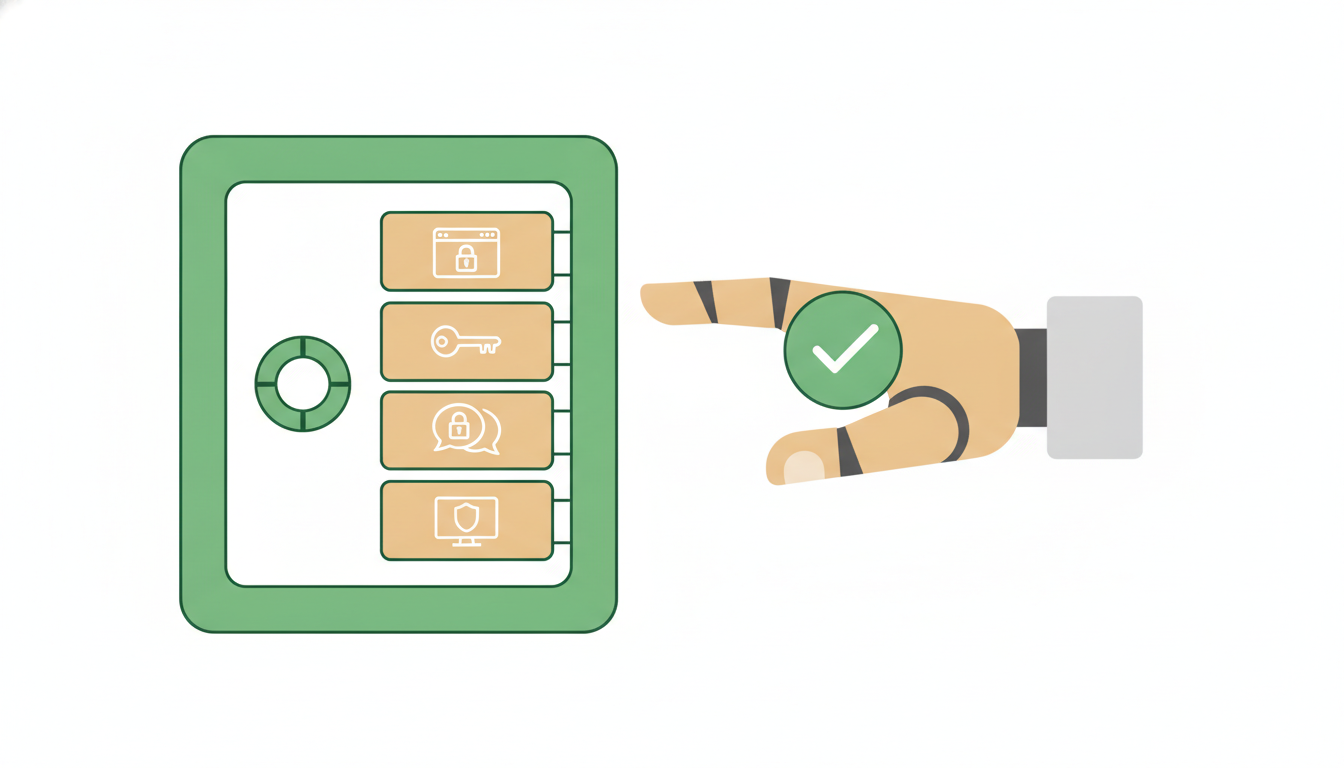
The Vault is where you manage saved credentials that may be needed for approved tool actions and automations. You'll find it in Settings → Account → Vault.
Some Vault entries are used inside Daytona. Daytona is the disposable cloud computer where Alfrada OS runs code — separate from your machine, wiped when the job is done. Storing a server key in the Vault lets Alfrada OS operate your server from that cloud computer without you ever pasting the key into chat.
Typical Uses
The credential types below match what you'll see when adding an entry:
- Web Login — a username and password for a website, for browser-based workflows
- API Key — API keys for external services
- Server (SSH) — SSH access to a server for data collection and devops (with optional bastion/jump-host fields), used for Daytona-isolated server operations
- Social Media Login — login credentials for social media platforms
- other secure credentials needed for approved tasks
What To Expect
- sensitive values are masked in the UI
- stored credentials are meant to support tool actions, not clutter conversations
- server keys are injected only into a fixed process inside a dedicated ephemeral Daytona sandbox, never model-generated Python
- Alfrada OS targets Daytona's Europe (
eu) region; ephemeral server sandboxes reclaim runtime compute, memory, and local storage when stopped - ephemeral means no persistent runtime state, not zero logging — Daytona keeps security/audit lifecycle logs
- you can add, edit, and remove credentials as your workflows change
How The Vault Connects To Safety
- Changing a server asks first. When a command could change a Vault-connected server — installs, restarts, edits, deletions — Alfrada OS pauses for your approval under the Remote server changes control in Settings → Agent Behavior → Safety. Read-only commands (checking logs, disk space, service status) run immediately. See Safety And Approvals and Daytona Can Now Operate Your Servers Without Seeing The Keys.
- You rarely type secrets in by hand. When a workflow needs a login, Alfrada OS raises a secure credential-capture form right in the chat. What you enter is saved into the Vault, and entries you already have appear as one-click chips so you never re-type them. See Connect Services That Don't Have OAuth.
- Protect the account that holds the Vault. Safety settings govern what the agent may do; two-factor authentication governs who can be you. Turn it on in Settings → Account → Security. See Two-Factor Authentication — Authenticator Codes, Backup Codes, Trusted Devices.
Best Practices
- use clear account names
- only store credentials you actively need
- remove old or unused credentials
- prefer one credential per clear workflow or system
Safety Mindset
The Vault is there to make powerful workflows possible without forcing you to paste secrets into chat. Treat it as operational infrastructure for your workflows, not as a dumping ground for sensitive context.