
Safety And Approvals
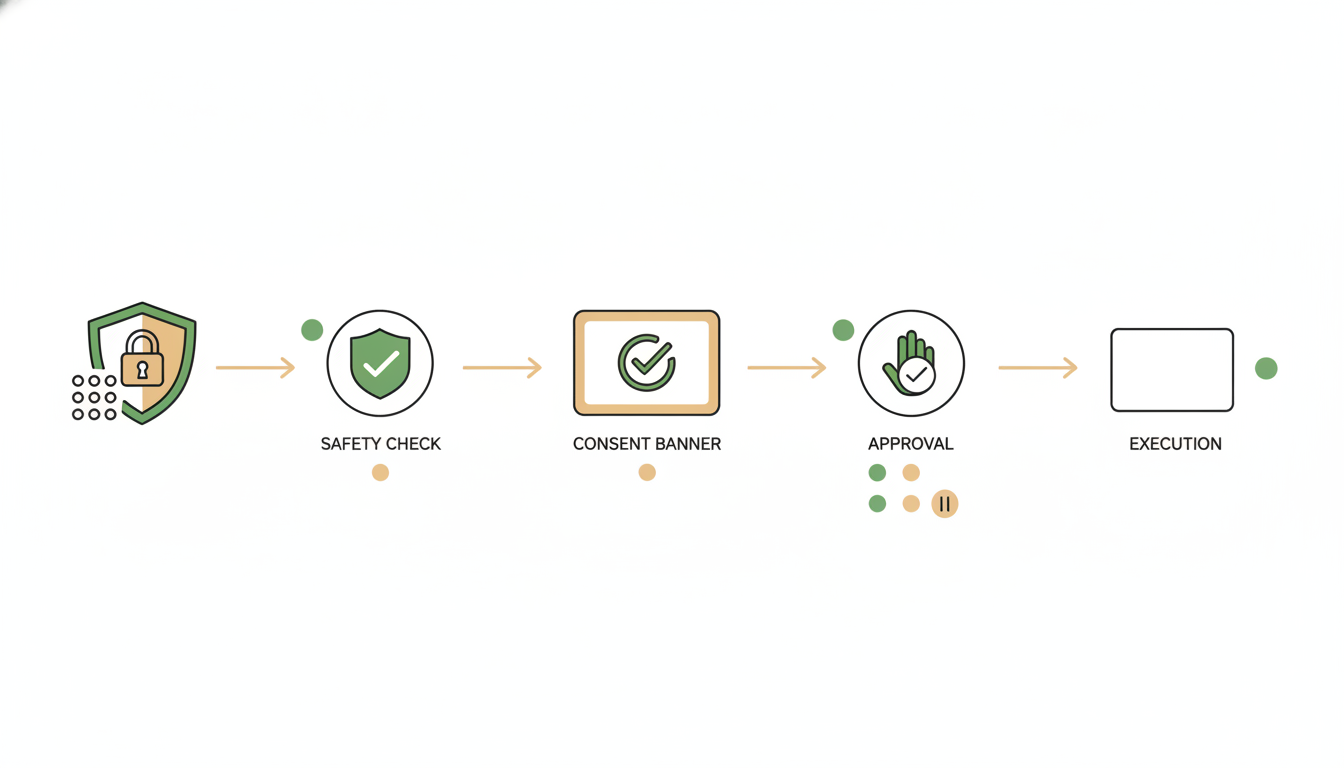
Alfrada OS is designed to be highly capable without becoming reckless. The point of safety settings is not to slow useful work down. It is to decide which actions can happen quietly, which ones should pause for approval, and where you want tighter control.
The default posture is consent-first: anything that leaves a visible mark outside your workspace — emailing or messaging a person, posting something publicly, deleting data, changing a remote server — pauses for your click first. Speed settings can relax that, but only because you deliberately chose to. All of it lives in one place: Settings → Agent Behavior → Safety opens the Safety Center, whose job is exactly what its subtitle says — "Control which actions the agent can take without asking you first."
What Safety Settings Actually Do
Safety settings control how much autonomy the agent has in your workspace.
They affect things like:
- whether new tools can be activated without asking first
- whether the agent should stop for clarification questions
- whether the agent can move a big task into Swarm mode on its own
- whether sandbox actions like shell access, package installs, outbound network use, or remote server changes should pause for approval
- whether connected accounts such as Gmail, GitHub, Slack, or Zoom can perform higher-risk actions without interrupting you
In other words, safety settings shape the balance between speed and supervision.
The Three Safety Profiles
Alfrada OS includes three top-level profiles in the Safety Center. Their on-screen descriptions:
Recommended— "Requires approval for risky actions, including remote server changes, sandbox installs, shell access, and outbound network use."Ludicrous— "Everything is auto-approved, including sandbox actions. No interrupts."Custom— "Fine-tuned by User"
For most users, Recommended is the right default. It preserves momentum while still adding checkpoints where mistakes or unintended side effects would matter.
What Recommended actually pre-approves, and what it still asks about:
- Runs without asking: activating additional tools, scheduling meetings and calendar events, and sharing uploaded images with an external AI model for analysis
- Pauses for your approval: sending outbound mail, contacting people, posting publicly, destructive changes, all four sandbox controls (shell access, package installs, network access, remote server changes), and switching to Swarm mode
- Still asks you questions: clarification questions are shown, not skipped
General Controls
These are the day-to-day controls most users will notice first. The shipped panel has five rows:
Auto-approve tool activation— "The agent can activate additional tools without asking for your permission each time."Auto-skip Q&A questions— "Skip information-gathering questions and let the agent proceed with its best judgment."Switching to Swarm mode— "When the agent thinks a task needs multiple parallel agents, it can suggest switching to Swarm. Choose whether it asks, switches silently, or never suggests it."Email Swarm results I haven't opened— "If you don't open a finished Swarm run within a few minutes, your agent emails you its deliverables and an executive summary. Never sent while EU-only processing is on."Auto-approve image sharing— "Send uploaded images to an external AI model for analysis or modification without asking first."
The Swarm results email is on by default. It is a notification preference rather than an approval, so turning it off keeps your profile as it is, and switching profiles keeps your choice. See Results By Email for what the email contains.
The Swarm control has three options instead of a toggle:
Ask(the default) — the agent pauses the turn with a consent banner that shows its reasoning, and nothing switches without your clickAlways allow— the agent switches to Swarm silently when it judges a task needs parallel workersNever— the suggestion disappears from your sessions entirely
Swarm runs cost more than single-agent turns, which is exactly why this switch is consent-first. See Swarm for what Swarm mode is, and the launch note for how the consent banner works.
These controls are useful, but they should be turned on deliberately. Auto-approval is best when the benefit of speed is higher than the cost of a wrong assumption.
When Alfrada OS Asks You Questions
Sometimes the agent needs information only you have — a preference, a missing detail, a decision between two directions. Instead of guessing, it pauses and shows a small question form right in the chat. Some questions are multiple choice (tap an option, or several where more than one applies), others are free text, and longer sets are split across a few short pages. Questions marked with an asterisk are required — the Submit button stays off until they are answered.
Some of these forms carry a countdown: "Auto-continues in 02:00 if no one responds." When it reaches zero — or when you press Skip — nothing is cancelled; the agent simply proceeds with its best judgment instead of your answer. In Swarm, every planner question carries this 2-minute countdown, and so does the plan review itself: an unanswered plan starts on its own (see Swarm).
If you would rather never be paused for questions, tick Always skip on the form itself. That is the same thing as turning on Auto-skip Q&A questions in the Safety Center — and you can turn it back off any time at Settings → Agent Behavior → Safety.
Sandbox Safety
The sandbox is a disposable cloud computer, run by a service called Daytona, where Alfrada OS executes code — separate from your machine and your accounts. Some of the highest-leverage actions in Alfrada OS happen inside it, which is why the app exposes them as explicit safety controls. All four, with their on-screen descriptions:
Sandbox shell access— "Require approval before the agent runs subprocesses or shell commands inside the Daytona sandbox."Sandbox package installs— "Require approval before the agent installs Python, JavaScript, or system packages inside the sandbox."Sandbox network access— "Require approval before the agent makes outbound internet requests from the sandbox."Remote server changes— "Require approval before Daytona runs a command that may change a Vault-connected server."
That last control is the one that guards your own servers: commands that only read from a connected server (checking logs, health, disk space) run immediately, while anything that could change it — writes, restarts, installs, deletes — pauses for your approval. Server connections themselves are managed in the Vault; the feature is introduced in the server access release note.
These controls matter because they change what the agent can do operationally, not just what it can say in chat.
Integration Safety
Connected accounts have their own safety layer.
Fifteen providers come with their own approval toggles: Gmail, Outlook, Microsoft Teams, Google Calendar, Facebook, LinkedIn, Twitter/X, Google Drive, Google Sheets, Google Docs, Google Slides, GitHub, Slack, Zoom, and Google Analytics (GA4). Each shows a card in the Safety Center with per-capability switches — for example Gmail's "Respond on behalf" and "Delete email", Twitter/X's "Post, like, retweet & follow", or Google Analytics' "Export audience user lists".
That means you can allow one category of action for a provider while keeping another category on approval, or make different choices for different connected accounts. Other services you can connect don't have their own toggle cards — their actions simply follow the general controls above.
How Approval Prompts Work
When an action needs approval, Alfrada OS shows an approval card with the provider, tool, and a summary of what is about to happen.
You can:
- approve and continue
- cancel the action
- choose
Always allowfor that kind of action if you want similar future requests to proceed automatically
This is most useful when you understand both the tool and the action category being approved. The approval moment is not just a permission step. It is also a quality checkpoint.
A Practical Rule For "Always Allow"
Use Always allow for repeated, low-risk, well-understood actions.
Be more cautious with:
- external network access
- package installs
- shell access
- actions that send messages or modify external systems
- anything you would struggle to audit after the fact
If your setup starts feeling messy, the Safety Center also gives you a simple Reset all to recommended link — it appears once you have customized anything away from the defaults.
Google Tools Are Conservative By Default
Google-connected tools are powerful, but they should not be treated as unrestricted admin access.
By default, they are better thought of as tools for reading, drafting, creating, updating, and organizing work rather than deleting it. In particular, do not assume Google tools will delete content by default.
That matters because many users are comfortable letting an agent draft a Google Doc, create a slide deck, search Drive, or prepare a reply, while being far less comfortable with destructive cleanup. The product is intentionally safer on that boundary.
Protecting The Account Itself
Safety settings govern what the agent may do. Two-factor authentication governs who can be you — and everything on this page assumes the person clicking Approve is actually you.
You can enroll in under a minute at Settings → Account → Security: scan a QR code with any authenticator app, and every new sign-in then asks for a 6-digit code on top of your password. You get 10 one-time backup codes for lost phones, and a "Remember this device for 30 days" option so your own machines stay friction-free. The full walkthrough lives on Account Security.
How To Use Safety Settings Well
- start on
Recommendedunless you know exactly why you want less friction - approve only what is needed for the current workflow
- use
Always allowsparingly and deliberately - tighten controls when working with external systems or sensitive data
- loosen controls only when the workflow is repetitive, well understood, and easy to audit
Trust The Agent, Verify The Important Parts
Safety settings reduce risk, but they are not a promise of infallibility.
Alfrada OS is designed to reduce many of the usual LLM failure modes by combining planning, tools, memory, files, and explicit approval gates. On the higher Effort settings (Medium and Beast), Alfrada OS also grades its own substantial deliverables against a quality checklist before handing them over — but that self-review is quality control, and it never replaces the approval gates on this page. Errors become less likely and easier to contain. It does not mean judgment is no longer required.
The best operating posture is simple:
- trust the agent to move the work forward
- inspect approvals before granting broad autonomy
- fact-check important claims, numbers, and decisions when the cost of being wrong matters
Prompting With Safety In Mind
If a workflow may trigger sensitive actions, say your boundaries up front.
You may research broadly, but do not send messages, connect accounts, or take irreversible actions without asking me first. If a tool needs approval, explain why before requesting it.Clear boundaries reduce unnecessary interruptions and make approvals easier to evaluate.
Help me achieve [objective], but stay on the safe side. Ask before using risky external actions, package installs, shell access, or anything that changes third-party systems.This is useful when you want the agent to self-plan while still keeping tighter control over operational actions.