
Live Workspace
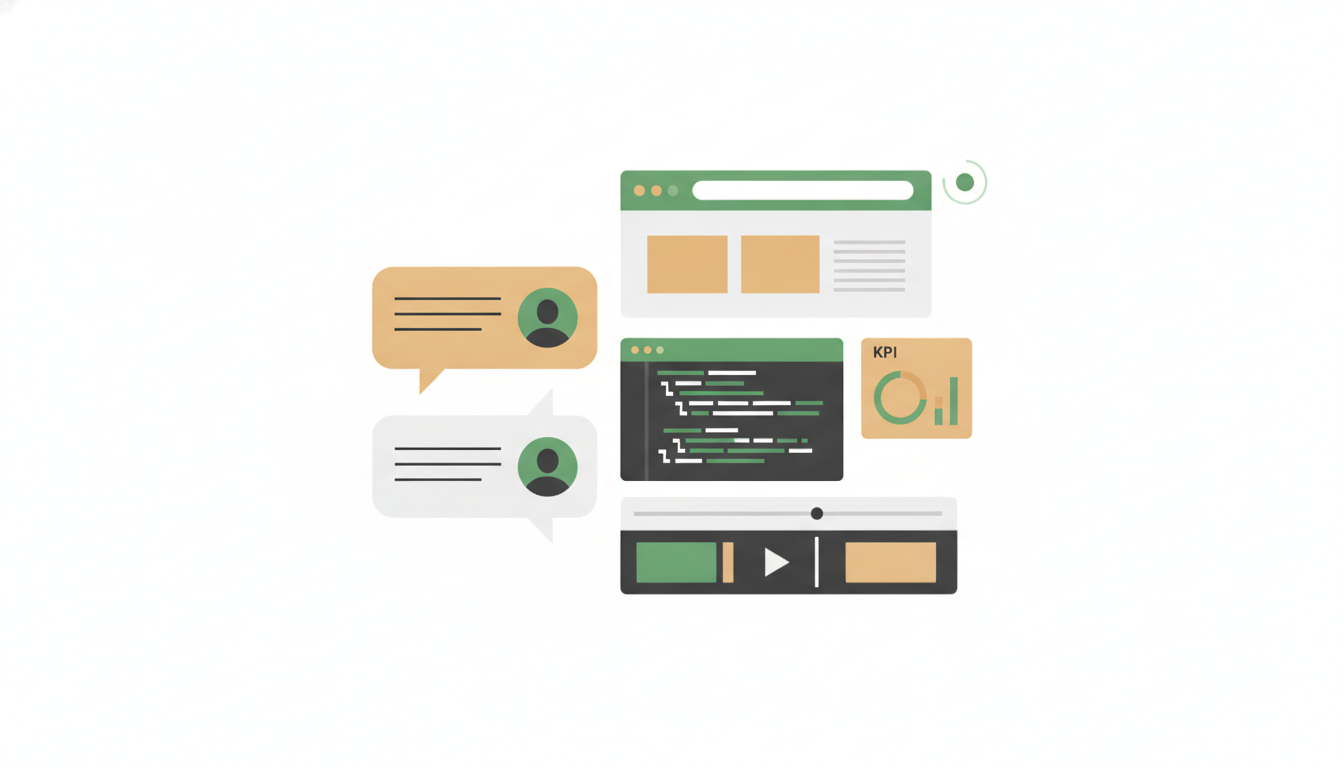
Most tools show you the result. The Live tab of the Work Panel shows you the work itself — a browser clicking through pages, code running, a video being assembled — so you can confirm Alfrada OS is on the right track and step in the moment it isn't.
You never have to open it yourself. The Live tab appears — and switches into view — automatically the moment live activity starts. When several things run at once, a small pager ("1/3" with arrows) lets you flip between them, and the header always tells you how many things are running and which one you're watching.
Research the three best project-management tools for a 10-person team — check each vendor's pricing page and at least two independent review sites. I'll watch in the Live tab and interrupt if you go down the wrong path.Browser research is exactly the kind of work worth watching: you see every page Alfrada OS visits and can redirect it with one message, instead of waiting for a finished answer built on a wrong turn.
The Seven Live Screens
Depending on what is running, the Live tab shows one of seven screens:
- Agentic Browser — the default live view. Whenever Alfrada OS works the web — researching, comparing pages, filling in forms — you watch its browser in real time, with the task it's working on shown at the top.
- Code Executor — when Alfrada OS runs Python (crunching a spreadsheet, building a chart, testing an idea), this screen shows the run with a live status line so you can see what it's doing right now.
- Smith Sub Agent — when Alfrada OS delegates work to sub-agents, each helper gets its own live card showing the task it was given, the model working on it, and its progress. Use the pager to flip between helpers running in parallel.
- Google Docs — the actual document, embedded live, while Alfrada OS edits it through your connected Google account.
- Google Sheets — the same, for spreadsheets: watch rows and formulas appear as Alfrada OS writes them.
- Google Slides — the same, for presentations: watch the deck take shape slide by slide.
- Video Studio — the unified video screen. Both video generation and video editing feed this one Studio view; it gets its own section below.
Google screens and your account
The Docs, Sheets, and Slides screens open the real document as the Google account you connected to Alfrada OS. If this browser is signed into a different Google account, the embed may say it can't open the file — sign into the same account in this browser and it will load.
Video Studio
Alfrada's video work comes in two kinds: creating footage — generating clips from a prompt, and just as readily transforming real footage (pulling a YouTube video into the session, prompt-editing a clip you uploaded, upscaling to 4K, transferring an acting performance) — and assembling footage into a finished deliverable (trimming, stitching, subtitles, music, transitions). One Studio covers both kinds of work, and each chat session keeps a single persistent Studio view instead of a carousel of intermediate videos. Newly generated clips land in the same timeline as your uploaded ones.
The Studio has two phases:
- Phase 1 — while Alfrada OS builds: a live step list with progress, so you can see each editing step as it happens.
- Phase 2 — after Alfrada OS finalizes the video: a preview player plus a horizontal timeline you can edit yourself.
In Phase 2 you can:
- drag clips into a new order
- trim clip start and end points
- set transitions between clips
- apply a color look per clip
- move or trim audio blocks
- click Update preview to rebuild the video with your changes
That last part is the reason to care: small timing, ordering, and transition changes don't need a new prompt. Adjust the timeline yourself and rebuild.
Presenter Mode is the same Studio. Generate a clip of Alfred or Ada — or anyone you have registered as a presenter — put it over a screen recording, drag their box, freeze the screen while they talk, or pause only them while the recording keeps playing. Markup draws on a held screen frame. The preview is what the export renders. See Presenter Mode.
If a follow-up message adds more material — another clip, background music — the timeline syncs it in automatically, unless you have unsaved manual edits (click Update preview first so your changes aren't overwritten).
For everything the editor itself can do — subtitle styling, audio mixing, output formats, the full transition list — see the CUDA Video Editor guide.
Create a 60-second narrated explainer from these six images. Write the script, generate voice-over, add soft background music, use crossfades between sections, then finalize. I will tweak the timeline in Live Video Studio after.This chains script, speech, music, image timing, transitions, and the Live editing handoff — the heavy lifting happens in chat, the fine-tuning happens on the timeline.
Use the three Video Lab clips we just generated. Stitch them into one 20-second product teaser with a title card, consistent color look, background music, and a final logo watermark.Generated clips flow straight into the same Studio timeline, so assembling them into one deliverable is a single follow-up message.
Why Watch
Live activity helps you:
- verify that the system is working on the right thing
- catch mistakes earlier
- understand long-running workflows
- explain the workflow to teammates later
Live is one tab of the Work Panel — for the rest of what lands there (uploads, generated files, presentations, dashboards, and more), see Files & Outputs.
Under the hood
- Live screens are routed by tool:
code_executor→ Code Executor,agent_smith→ Smith Sub Agent,video_editorandvideo_lab→ the shared Video Studio surface, and other live-capable web work → Agentic Browser. The Google Docs / Sheets / Slides screens appear when those tools return a document, spreadsheet, or presentation, embedded via your connected Google account (the embed is scoped to that account's email so the right login opens it). - All
video_editorandvideo_labcalls in a session merge into one persistent Video Studio item rather than one item per call. - The
finalizestep marks the MP4 as the deliverable and unlocks the Phase 2 timeline. Update preview rebuilds the video on the GPU rendering server, and the new file appears under Generated Files. - Release notes: Presenter Mode, Live Video Studio, and Video Lab works on your footage.