
Swarm
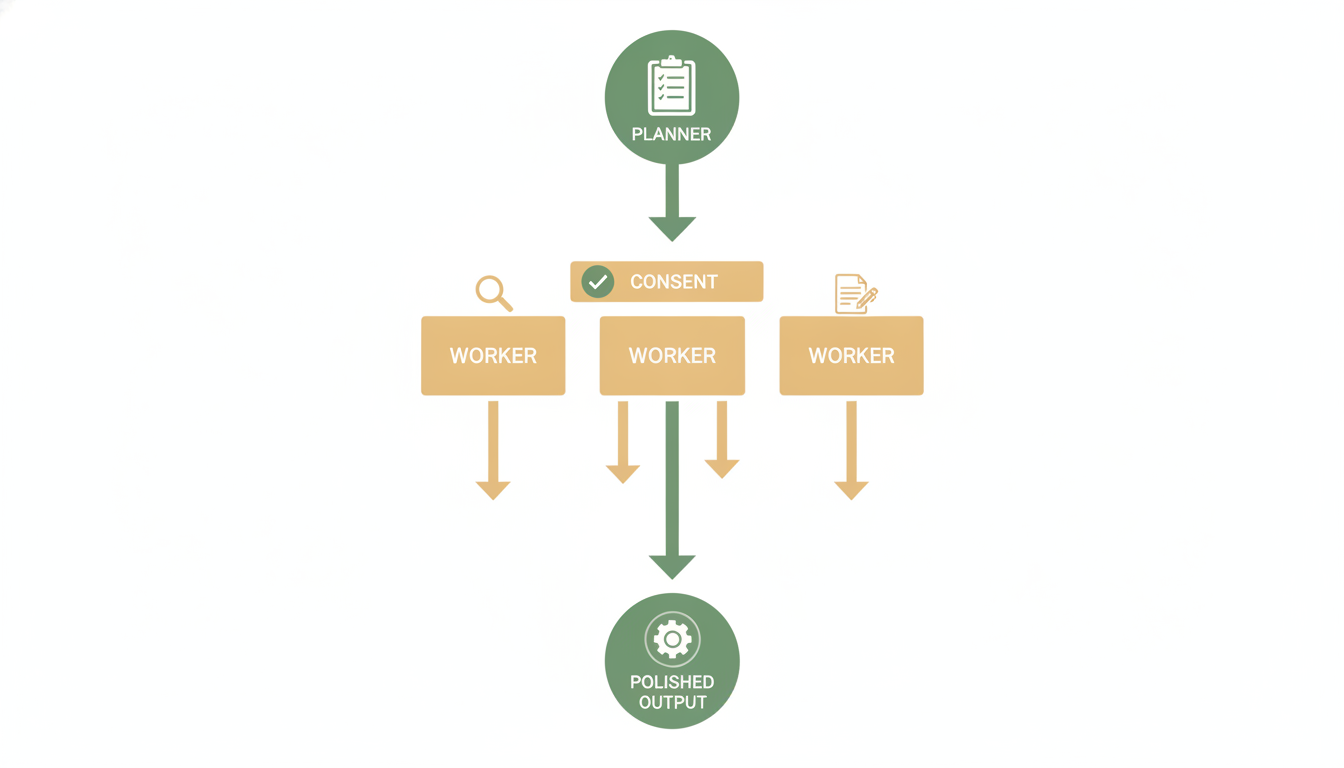
Swarm is Alfrada's multi-agent mode. It is useful when one agent should not be responsible for everything.
When Swarm Shines
- complex research with multiple sub-questions
- strategy work that benefits from challenge and synthesis
- questions with more than two legitimate positions — a panel, roundtable, or focus group
- code or document review where one pass is not enough
- deliverables that need planning, execution, and QA
What To Expect
When you use Swarm, Alfrada OS can:
- break the work into sub-tasks
- coordinate multiple roles — including a moderated panel of 2 to 5 named personas
- ask for feedback or clarification when needed
- surface progress in the dedicated
Swarmpanel
Workers, Debate, And Panel
A Swarm plan is made of steps. Most steps are workers — one agent gathers, computes, or writes. Two other step types exist for when the job is a discussion rather than a task:
| The step must… | Mode | What you see |
|---|---|---|
| Gather, compute, or write | Worker | A normal step |
| Check whether prior findings are sound | Debate | A debate badge. Advocate and critic go three rounds; a judge delivers the verdict. Use this for a binary call — long vs short, bull vs bear, "are these findings solid?" |
| Weigh several genuinely different positions | Panel | A sky panel · 4 badge (seat count; · deep or · quick when you are not on the default). Hover it to read each persona's name and stance. |
A panel is a moderated discussion, not a work split. Two to five named people hold different positions. The moderator opens the floor, decides who speaks, presses the aspects that matter, and closes when the room stops producing new information. Every participant gives a closing statement; the moderator writes the verdict.
- Depth. Quick — 2 rounds, no tools. Standard (default) — up to 4 rounds with tools. Deep — up to 6 rounds, for a core position or a high-stakes call. The moderator can close early.
- Real people. Name a public analyst, executive, regulator, or commentator. Swarm researches their published record first, then seats them as that person. They argue from that record; they do not invent quotes. Private individuals are out of scope.
- Cost. A standard four-person panel is roughly 15–20 model calls on top of the research that feeds it. Swarm will not stack multiple panels unless you ask.
Ask for it in plain language — "get me a panel", "war-room this", "what would [named public figure] say" — or let the agent offer Swarm when the question has more than two sides. A panel only runs as a Swarm step; writing all the voices in one Agent turn is not a substitute.
Run this in Swarm. Seat a panel on [the decision]: [position A], [position B], [position C], and [position D]. I want where each position landed, the contested points, and what would change the call.Naming the positions gives the planner an obvious seating plan. The panel badge in the Swarm plan lets you check the room before you unleash.
The full write-up of what shipped is in Swarm Can Now Seat A Panel. Investment theses use the Hedge Funds prompts.
Getting Into Swarm
You can always pick Swarm yourself from the mode selector. The agent can also reach for it mid-task, when it gets into the work and concludes the task is better split across parallel workers — several distinct domains, a lot of tool work, or multiple deliverables that can be produced at once.
When it does, it cannot switch on its own. The turn pauses and a consent banner appears with the agent's reasoning: Switch to Swarm hands the task to a planner with parallel workers, Stay on Agent resumes the single agent, which will use parallel sub-workers instead where that helps. One thing to know before you click: in Swarm, the planner assigns each worker its own model, so your model and Effort picks are parked while the Swarm runs — they take over again the moment the session returns to Agent mode.
If you don't want to be asked every time, tick Don't ask again on the banner, or set it in Settings → Agent Behavior → Safety → Switching to Swarm mode: Ask (the default), Always allow (the agent switches silently), or Never (the agent stops suggesting Swarm entirely).
Once a turn has escalated, the session stays in Swarm for the following turns rather than asking again. Short follow-ups — a quick edit to a deliverable, a clarifying question — drop back to the single agent on their own, with nothing to click, and the next substantial turn picks Swarm back up.
Getting Back Out
The switch works in both directions. If you picked Swarm from the mode selector yourself and later want a single continuous thread — or you simply ask in chat to "switch back to single agent" — the planner raises the same consent banner in reverse: Switch to Agent flips the session back to the single agent for good and re-runs the turn there, Stay in Swarm keeps the plan and workers as they are. Your saved plan isn't lost either way; toggling back to Swarm later resumes it from where it stopped.
The same Safety Center preference applies: with Always allow the planner drops back silently, and with Never it won't suggest leaving Swarm at all.
Reviewing And Launching The Plan
Before any workers run, Alfrada OS drafts a plan and pauses so you can review it in the Swarm panel. Each step shows its role, the tools it will use, and the model assigned to it.
From there you can:
Unleash Swarm— start the run with the worker swarmCancel— discard the plan and return to chat
If no one answers within 2 minutes, the plan counts as approved and the swarm starts on its own. A countdown under the buttons shows the time left: "Auto-starts in 01:59 if no one responds." It exists for fire-and-forget requests: send the task, walk away, and the run still happens, even with the tab closed. Cancel stops it, and sending a change gives the revised plan a fresh 2 minutes. Typing in the message box stops the countdown too, so the plan cannot start while you are writing a change; it then waits for your click or your message. Switching the session to Agent parks the plan instead: if you come back to Swarm, it waits for your click.
The same clock applies when the planner changes the plan mid-run and needs your re-approval (the Resume button), and to questions the planner asks you: unanswered, they are skipped and the planner proceeds with its best judgment. One review always waits for your click: the one after 10 automatic approvals in a row, so a run that keeps failing and re-planning cannot keep spending unattended.
Execution runs in the background on the server. You can close the window and come back — your progress and the finished result will be waiting. Most runs take a few minutes; longer, more rigorous agent flows can take hours.
Results By Email
If you don't come back for the result, it comes to you. When a run finishes and you haven't opened it in a visible tab or downloaded one of its files within five minutes, your agent (Ada, Alfred, or your Alfrada agent, depending on your personality setting) emails you the deliverables and a short executive summary. While the run is going, the Swarm panel shows the address it will use.
- The files that matter, not every file. A Gemma model on Alfrada's own GPU picks what you should read: the main document, every presentation, and the spreadsheets that hold the analysis. Source material the run collected, such as a company's own filings, earnings decks, or call transcripts, stays out, and so do the Swarm's internal notes.
- Formats you can open anywhere. Markdown reports arrive as PDFs and HTML slide decks as PowerPoint. If the run produced no document, the final answer itself comes as
<plan title> - Final report.pdf. - Size limits. Up to six files and 15 MB per email. Anything larger is listed with a link back to the run.
- No token cost. Picking the files and writing the summary doesn't use your plan's tokens.
Decks built in the Presentations panel are attached only if you have already exported them as PowerPoint; otherwise the email tells you where to find them. The email is never sent for scheduled tasks or when EU Data Residency is on, because it leaves the EU. To stop it, turn off Email Swarm results I haven't opened in Settings → Agent Behavior → Safety.
Which Models Do The Work
In Swarm, you don't pick the models — the planner does. Each worker gets a model matched to its step: a research worker might get a heavyweight reasoning model while a formatting worker gets a fast, cheap one. Every assignment is visible in the plan before you approve it.
The planner doesn't choose from the whole catalog, either. Workers draw only from a vetted swarm-eligible subset — around 32 models screened for dependable tool use — so no step lands on a model that can't carry it. And if your Community account is brand new (not yet reviewed, no purchase on file), Swarm plays by the same rules as your live chat: the planner and every worker stay under the same model-price ceiling, and a cheaper model is quietly assigned wherever a pricier one would have been out of bounds.
Privacy holds mid-run too. If a privacy-routed model becomes unavailable, the planner and workers alike fall back to a first-party model with zero data retention rather than failing the run or loosening your privacy — the same safety net that covers normal chat. See Privacy & Data Routing.
Under the hood
- Swarm eligibility is a per-model flag — 32 active models carry it at the time of writing.
- The new-account band ceiling is enforced on each worker's assigned model and on the planner's own pick.
- The zero-data-retention fallback is shared by the single agent and Swarm workers.
What A Swarm Turn Costs
Parallel work is parallel spend. Every worker reads its own context and burns its own tokens, so one Swarm turn typically costs as much as several Agent turns — that is the price of getting research, synthesis, and QA done at once instead of one after another. It is also exactly why the switch into Swarm is consent-first: nothing starts spending until the plan is approved, by your click or by 2 minutes passing with no answer.
Related: Argus, Alfrada's WhatsApp agent, can escalate its heartbeat and reply runs to multi-agent execution — that Argus Swarm variant is included in the Black plan only. See Argus On WhatsApp.
See A Mock Swarm Flow
This guided demo shows how a Swarm session can decompose work, make progress visible, stop for user input, and converge on one final answer.
How To Prompt Swarm Well
Ask for roles and quality checks directly.
Use Swarm mode for this task. Split the work into research, synthesis, and QA. Challenge assumptions, reconcile disagreements, and return one final answer with explicit confidence levels and unresolved risks.This gives the multi-agent system permission to decompose, critique, and converge instead of producing a shallow single-pass answer.
When Not To Use It
Avoid Swarm for:
- very small edits
- tasks where speed matters more than depth
- simple fact lookup
- quick formatting or rewriting jobs
Review Habit
The best Swarm sessions usually include at least one user checkpoint:
- approve the decomposition
- answer the clarifying question
- redirect once before final output