
Automations
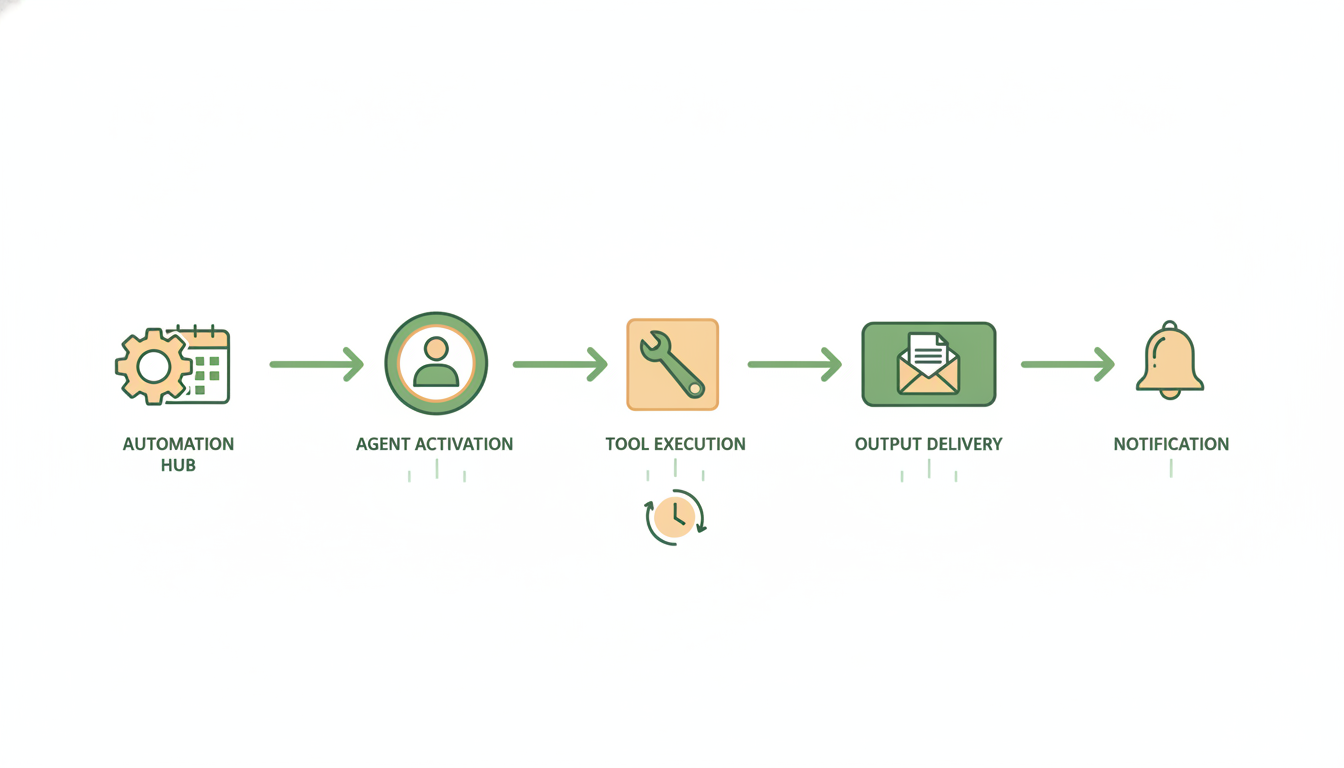
Automations are jobs Alfrada OS runs for you on autopilot — a morning market scan, a weekly executive digest, social listening while you sleep. You describe the job once; Alfrada OS runs it on schedule and leaves the result waiting in your chat list. Creating and running automations is free — you only pay for the model work inside each run, same as a normal conversation.
Where They Live
Every automation you own appears as a card under Settings → Automations — the panel headed "Recurring actions that run on autopilot." The card list is also where you pause, edit, test, or delete them.
Creating One
There is no create button, and you don't need one: you set up an automation by asking for it in chat. The Automations panel itself suggests exactly this when it's empty — "Ask Alfred or Ada to set one up. For example: 'Check Twitter, Instagram, and TikTok every morning for trending topics on AI'".
Set up a recurring task that runs every weekday at 7am. Check [sources], look for [signals], and return [format]. If nothing material changed, say that clearly instead of forcing a long report.Automations work best when success conditions, cadence, and output format are explicit.
A few things worth knowing up front:
- Cadence can be one-time, daily, weekly, or monthly — or any custom rhythm you describe ("every second Tuesday", "weekdays at 7am"), which shows up on the card as "Custom".
- Each run opens a new conversation, titled with the automation's name, in your regular chat list. Open it like any other chat, read the result, and keep talking — follow-up questions work exactly as they would in a live session.
- Runs happen in Agent or Swarm mode — a badge on each card shows which. Agent suits focused, repeatable routines; ask for Swarm when the job needs to be broken apart, challenged, or quality-checked before the final output.
What A Good Automation Includes
- a clear objective
- explicit data sources or tools
- a cadence such as daily, weekly, monthly, or custom
- a destination format for the result
Best Practices
- keep each automation focused on one output
- tell Alfrada OS what should count as success
- test the workflow once before relying on the schedule
- review failures and tighten prompts when needed
Managing Your Automations
Each card in Settings → Automations shows the automation's name and description, its Agent or Swarm badge, its status, its cadence, and its next and last run times. The buttons on the card are:
- Pause / Resume — stop the schedule without losing the setup, and restart it later.
- Test Run — fire the job right now to check it does what you meant, without waiting for the schedule.
- Edit — change the name, description, schedule, and next run time inline, right on the card.
- Delete — remove it for good.
If a run fails, the card shows a "Last error" line so you can see what went wrong and tighten the prompt.
Wake Me — The Other Kind Of "Later"
Not everything you want later deserves a standing schedule. For "check back on this" moments — an email reply you're waiting on, a long render, a price level, a deadline — Alfrada OS can wake the same conversation back up and carry on where you left off, instead of opening a new one.
If the reply from [person] hasn't arrived in 2 hours, check again and draft a polite follow-up. Otherwise just tell me it landed.A wake-up keeps time-dependent follow-through inside the conversation that already has the context, instead of spawning a new thread.
The rules, in plain terms:
- A wake-up can be set for anywhere between 5 minutes and 24 hours from now.
- Each conversation holds one pending wake-up — setting a new one replaces it.
- You can have at most 5 pending wake-ups across all your conversations.
- Writing anything in the conversation cancels its pending wake-up — you're back, so the timer standing in for you retires. You can also cancel it from the ✕ on the countdown in the chat.
- A wake-up never fires while that conversation is mid-run or waiting on an approval from you; it waits for the thread to be free.
- Alfrada OS may chain at most 10 consecutive self-wakes without a real message from you — then it must stop and deliver what it has, or offer to turn the check into a proper automation.
- Wake-ups are free.
- They are not available in WhatsApp or Argus chats — proactive WhatsApp timing belongs to the Argus heartbeat (below).
A pending wake-up also appears in Settings → Automations, and you can pause it there like any other card.
Automation Or Wake Me?
| Automation (Task Scheduler) | Wake Me | |
|---|---|---|
| What it is | A standing job that repeats on a schedule | A one-off follow-through in a conversation you already have open |
| Where results land | A new conversation per run, titled with the task name | Your existing thread, which picks up where it left off |
| Cadence | Once, daily, weekly, monthly, or custom | One shot, 5 minutes to 24 hours from now |
| How many you can have | Unlimited | 1 pending per conversation, 5 across all your conversations |
| Managed in | Settings → Automations | Settings → Automations too, as a pending wake-up you can pause |
| Cost | Free to create and run | Free |
Rule of thumb: anything anchored to the clock — "every day at 9am" — is an automation, not a wake-up.
Argus's Check-Ins Are One Of These
If you use Argus on WhatsApp, its proactive check-ins are not magic — the heartbeat is itself an ordinary scheduled task named "Argus heartbeat", and you'll find it, with every run's notes, under Settings → Automations alongside your own. Configure how often it beats, its quiet hours, and its model at Settings → Argus.
One Limit To Know
Scheduled runs respect the same model ceiling as live chat: new free accounts start with models in the Budget 1× band until an automated account review or any purchase lifts the cap. See Getting Started for the full explanation.
The Payoff View
Automations are usually where Alfrada OS quietly saves you the most time. See what they're worth at Settings → Account → Hours Saved — expert hours saved, a dollar value at per-profession rates you can edit, and per-conversation receipts.
Under the hood
- The scheduling tool is
task_scheduler; accepted cadences areonce,daily,weekly,monthly, andcron(rendered as "Custom" in the UI). Each run executes as a new chat session of typetasktitled with the task's name. - Same-conversation wake-ups are the
wake_metool: window 5–1440 minutes, one pending row per conversation (a newsetreplaces it), 5 active rows per user, a 10-turn consecutive wake chain, refused whenis_whatsapp_sessionis set. A live user turn, the countdown's ✕ button (DELETE /api/chat/{id}/wake), and the tool's owncancelaction all delete the row through the same path; firing is deferred while the thread has a live or detached run, or a pending human-in-the-loop interrupt. Pending wakes are stored asScheduledTaskrows, which is why they surface in Settings → Automations. - Both tools are zero-cost.
- The Argus heartbeat is a
ScheduledTaskrow created by the Argus daemon; Argus can push or restore its ownnext_run_atvia the Argus-onlyargus_schedule_selftool. - Background runs respect your account's band ceiling, so a scheduled run can never pick a model your live chat couldn't.