
Files And Outputs
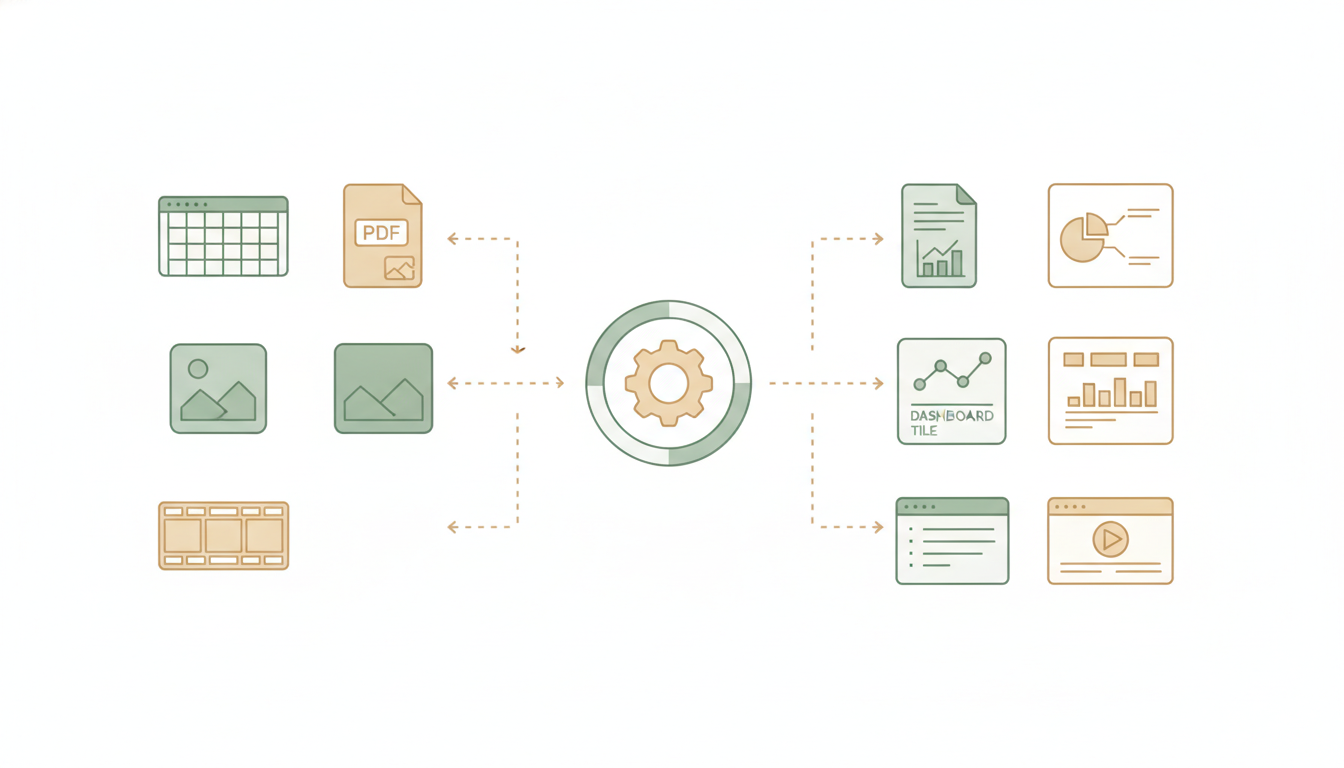
Alfrada OS sessions can hold both your input material and the outputs created during the workflow. This page covers how material gets in, what comes out, and where to find all of it in the Work Panel.
Inputs
Use uploads when the task depends on your source material:
- spreadsheets
- reports
- notes
- transcripts
- presentations
- media files
Uploading isn't the only way to get material into a session:
- Pull a YouTube video in — ask Alfrada OS to download a video (or just its audio track) straight into the session, up to 20 minutes long by default. You can even ingest only the minutes you care about, so you never pay to analyse a 40-minute talk when you only need 30 seconds of it.
- Images stay readable — any image already in the session can be re-examined later with a fresh question ("describe each face in detail"), and Alfrada OS can compare two or more images to check whether they show the same person, the same object, or a consistent visual style. Useful when you've generated several shots of one character and want to know if they still look like the same character.
Download this YouTube talk, pull in just 12:00 to 14:30, and cut the three strongest moments into a short vertical clip.Alfrada OS fetches the source, ingests only the window you named, and works from there — no downloading, trimming, and re-uploading on your side.
Outputs
Outputs created during a session can show up as:
- markdown files and written reports
- presentations
- cleaned or transformed datasets
- polished Excel workbooks — trackers, scorecards, and financial models with live formulas, not bare grids; a saved template is filled instead of rebuilt
- live interactive dashboards you can explore, filter, and export
- in-place edits to your own uploaded decks, Word documents, and workbooks — the original design and formatting preserved, with leftover
reported and a visual check when layout can break - finished videos that arrive as editable timelines, not just MP4s — every finalized video opens in Live → Video Studio, where you can drag clips into a new order, trim, and rebuild (Live Workspace)
- Canva designs — created, imported, and exported straight back into the session's files
- rich media artifacts — images, audio, diagrams
The point of all this: you get real deliverables you can open, edit, and send onward — not walls of chat text you have to copy out yourself.
Under the hood — the tools behind these outputs
| Output | Tool |
|---|---|
| Live interactive dashboards | HTML Dashboard (html_dashboard) |
| In-place edits to uploaded PowerPoint decks | PPTX Patch (pptx_patch) |
In-place edits to uploaded Word documents and saved .docx templates | Doc Patch (doc_ops) |
| In-place edits to uploaded PDFs | PDF Patch (pdf_ops) |
Polished Excel workbooks, live formulas, and saved .xlsx template fills | Excel (excel_ops) |
| Editable video timelines | Video Editor (video_editor — the finalize step unlocks Live Video Studio) |
| Canva designs | Canva (canva — successful exports auto-save into the session's files) |
| Image re-reading / comparison | History Searcher (history_searcher describe_file) · Image Consistency (image_consistency) |
See A Media Workflow
This mockup shows how file uploads, image generation, and the Generated Files panel work together in a real session — including thumbnail previews, file inventories, and iterative editing.
Work Panel Tabs
The Work Panel is where everything a session holds lives. It shows up to eight tabs, and each one appears only when it has something to show — a quick chat might show none, a big job might show all eight:
- To-dos — the agent's live task checklist for the current job, ticked off as it works
- Swarm — the plan and the workers when a session escalates to Swarm mode
- Markdown — written documents, readable in place and exportable
- Uploads — every file you've added to the session
- Generated Files — everything Alfrada OS has produced, with previews
- Presentations — slide decks built in the session
- Dashboards — live interactive HTML dashboards
- Live — watch tools work in real time: a browser clicking through pages, code running, a video being assembled. The panel switches to Live automatically the moment browser activity starts. Full guide: Live Workspace
Best Practices
- upload the source material before asking for analysis
- ask for named files and deliverables
- reference existing uploads when asking for revisions
- treat the work panel as the source of truth for generated artifacts
Use the attached files to produce three outputs: 1) a cleaned CSV, 2) a one-page markdown summary, and 3) a presentation outline. Name the outputs clearly and keep each artifact focused on an executive audience.Good output framing encourages Alfrada OS to generate inspectable artifacts instead of burying everything inside a long chat message.